



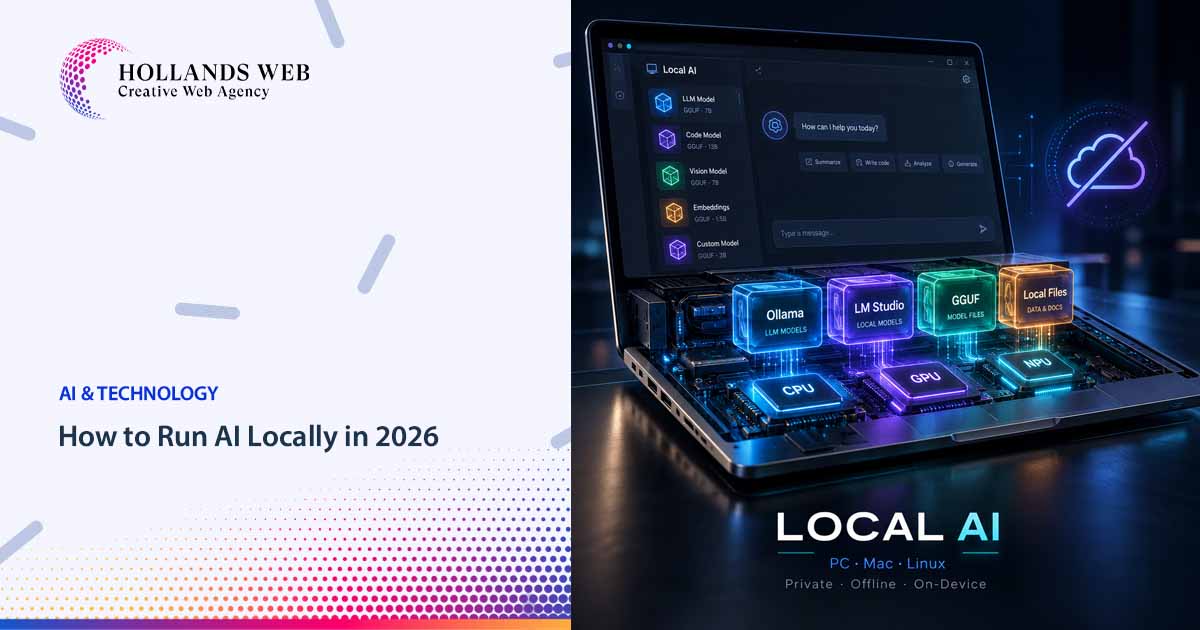


You no longer need to send every prompt, document or line of code to a remote AI server.
In 2026, a reasonably capable laptop or desktop can run surprisingly powerful AI models directly on its own hardware. Depending on the model and machine, that can include reasoning, coding, image understanding, document analysis, tool use and even local AI agents.
The important distinction is that the AI model itself runs on your computer. After the necessary software and model files have been downloaded, many setups can continue working without an internet connection.
This has become possible because several technologies matured at roughly the same time: better open-weight models, aggressive quantization, efficient inference engines such as llama.cpp, Apple Silicon’s unified memory, increasingly capable GPUs and NPUs, and easy-to-use tools such as Ollama and LM Studio.
OpenAI, Google, Microsoft, Alibaba and other model developers are also releasing models specifically suited to local or edge deployment. OpenAI’s gpt-oss-20b, for example, is designed for on-device use and can operate within roughly 16 GB of memory, while Google is explicitly designing its Gemma 4 family for hardware ranging from edge devices to laptops and developer workstations.
But there is one concept worth understanding before installing anything:
a model, an inference engine and a chat interface are not the same thing.
That distinction makes the local AI ecosystem much easier to understand.
How Local AI Actually Works
A typical cloud AI service hides almost everything behind one website. You open the page, type something and receive an answer.
Local AI exposes more of the stack.
A simple setup may look like this:
AI Model → Inference Runtime → Interface → Optional Tools and Documents
For example:
Qwen3.5 → Ollama → Open WebUI
or:
gpt-oss-20b → llama.cpp → Local API → Your Application
or simply:
Gemma 4 → LM Studio
The model contains the learned weights. The runtime executes those weights. The interface gives you a convenient place to interact with the model. Additional software can then provide RAG, file search, agents, APIs, speech or other features.
This is why Ollama, Open WebUI and AnythingLLM should not really be presented as direct competitors. They solve different parts of the local AI problem.
The Main Local AI Tools in 2026
| Tool | What it does | Good fit for |
|---|---|---|
| Ollama | Local model runtime, model manager and API | Developers and simple local setups |
| llama.cpp | High-performance low-level inference engine | Maximum control and efficient GGUF inference |
| LM Studio | Desktop GUI, runtime and local API | Beginners and desktop users |
| Open WebUI | Self-hosted ChatGPT-style AI interface | Advanced personal or team AI environments |
| AnythingLLM | AI workspace with documents, RAG and agents | Private knowledge bases and document work |
| Jan | Local-first desktop AI client and API server | ChatGPT-like local desktop experience |
| MLX / MLX-LM | Machine-learning and LLM stack optimized around MLX | Apple Silicon developers |
| Microsoft Foundry Local | Local model runtime and SDK | Windows and application developers |
| Docker Model Runner | Runs and serves AI models through Docker | Developers already using Docker |
| Chrome Built-in AI | Browser-managed local AI APIs | Web developers building client-side AI |
The tools can also be combined. Open WebUI, for example, can use Ollama as the model backend rather than running the model itself.
Which AI Models Can You Run Locally in 2026?
The local model landscape changes much faster than the desktop software around it. Instead of choosing a tool because it ships with one model, it is better to choose a runtime that allows models to be changed later.
Several model families are particularly relevant now.
gpt-oss-20b and gpt-oss-120b
OpenAI’s gpt-oss family consists of open-weight reasoning models designed to run on infrastructure controlled by the user.
There are two primary versions:
gpt-oss-20b and gpt-oss-120b.
Both use a Mixture-of-Experts architecture, meaning only part of the total parameter set is active for each token. OpenAI says the 20B model can run with around 16 GB of memory, while the 120B model can fit on a single 80 GB GPU using its native MXFP4 quantization. They support reasoning controls, structured outputs and tool-oriented workflows.
For a personal computer, gpt-oss-20b is therefore the more realistic member of the family.
With Ollama, installation can be as simple as:
ollama run gpt-oss:20bOllama downloads the model on the first run and stores it locally.
After that download, inference can happen on the machine rather than through the OpenAI API.
It is also worth clarifying that gpt-oss is not ChatGPT running offline. These are separately released open-weight models and are not the proprietary models served through ChatGPT.
Gemma 4
Google’s Gemma 4 represents another major shift toward capable on-device AI.
The original 2026 family includes Effective 2B and 4B edge models alongside 26B MoE and 31B models. Google subsequently introduced Gemma 4 12B, positioned specifically as a multimodal model capable of running locally on laptops; Google says the 12B model can run with 16 GB of memory.
Gemma 4 goes beyond plain text. Depending on the model variant, the family supports combinations of images, video and audio in addition to reasoning, coding and agentic workflows. Google also provides quantization-aware versions intended to reduce the hardware requirements of local deployment.
Ollama currently exposes the family through:
ollama run gemma4The Ollama model catalog includes multiple Gemma 4 sizes and variants.
For users interested in multimodal local AI rather than text-only chat, Gemma 4 is an important model family to watch.
Qwen3.5
Alibaba’s Qwen3.5 is another particularly useful family because it covers everything from lightweight laptop models to much larger deployments.
Ollama currently offers Qwen3.5 variants including approximately 0.8B, 2B, 4B, 9B, 27B, 35B and larger versions. The family combines text and vision capabilities with reasoning and tool support.
A smaller model can be started with:
ollama run qwen3.5:4bOllama’s current 4B quantized package is roughly 3.4 GB, illustrating how quantization allows billion-parameter models to become practical downloads for ordinary computers.
Qwen models are also widely supported by LM Studio, llama.cpp, MLX and other local runtimes.
Phi-4 Mini
Microsoft takes a somewhat different approach with its Phi family.
One convenient way to run Phi-4 Mini locally is through Microsoft Foundry Local. The platform can select CPU, GPU or compatible NPU variants depending on the machine. Microsoft currently uses phi-4-mini as a primary example in its Foundry Local documentation.
After installing Foundry Local, you can start it with:
foundry chat phi-4-miniThe model is downloaded the first time and then cached on the computer.
This approach is particularly relevant for Windows developers who want local AI embedded directly inside applications rather than simply another chatbot window.
Gemini Nano and Browser-Based AI
Not every local model needs to be manually downloaded through Ollama or Hugging Face.
Chrome’s Built-in AI APIs use browser-managed models, including Gemini Nano. The Prompt API can expose a local language model directly to compatible web applications. Chrome manages the model download and makes it available to the website through JavaScript APIs.
This changes the architecture of AI-enabled websites.
Instead of:
Browser → Your server → AI API → Your server → Browser
some tasks can become:
Browser → Local AI model → Result
For developers, that potentially means lower server costs, reduced latency and greater privacy for suitable client-side workloads.
Google has also expanded Gemini Nano inference to CPU-based devices, although capable GPUs generally remain faster.
1. Ollama: One of the Simplest Ways to Run Models Locally
Ollama has become one of the most recognizable runtimes for local AI because it hides much of the complexity of downloading, configuring and serving a model.
It is available for Windows, macOS and Linux. The official installers can be downloaded directly, while Linux users can install it through the terminal.
On Linux:
curl -fsSL https://ollama.com/install.sh | shOn Windows, the current PowerShell installation method is:
irm https://ollama.com/install.ps1 | iexOnce installed, running a model is usually one command:
ollama run qwen3.5:4bor:
ollama run gpt-oss:20bor:
ollama run gemma4The model is downloaded once and stored on the computer.
Ollama also exposes a local API, which means developers can build websites, internal tools, coding utilities or automation systems that communicate with the model without depending on a cloud AI API.
That is one reason Ollama works particularly well as the backend of a local AI stack.
2. llama.cpp: The Engine Behind Much of Local AI
If Ollama makes local models convenient, llama.cpp represents much of the engineering that makes those models practical.
It is a C/C++ inference project designed to run LLMs and vision-language models efficiently across a wide range of hardware. It supports local command-line inference as well as an OpenAI-compatible server.
Prebuilt versions can be downloaded, or the project can be compiled from source. Once installed, llama.cpp can even download compatible models directly from Hugging Face.
For example:
llama cli -hf ggml-org/Qwen3.5-0.8B-GGUFA local API server can be started with:
llama serve -hf ggml-org/Qwen3.5-0.8B-GGUFllama.cpp is especially important because of GGUF, the format used by many quantized local models. It also provides tooling for converting and quantizing models.
Most casual users do not need to interact with llama.cpp directly. Developers, researchers and anyone tuning local inference performance eventually encounter it because many higher-level applications build on the same ecosystem.
3. LM Studio: Local AI Without Living in the Terminal
LM Studio is one of the easiest entry points for someone who wants local AI but does not want to manage command-line tools.
Install the desktop application, open the Discover section, search for a model and download a compatible version. LM Studio can find models such as Qwen, Gemma and gpt-oss, including different quantized variants.
Once downloaded, load the model into memory and start a chat.
The important part is what happens afterward: LM Studio’s core local features can work without internet access. Its documentation confirms that downloaded models, document chat/RAG and its local server can operate offline, with the prompts and documents staying on the machine for those local workflows.
Internet access is still needed when searching for or downloading new models and runtimes.
LM Studio can therefore serve two different audiences. A non-technical user can treat it as a private desktop AI application, while a developer can start its local server and use it as an OpenAI-style endpoint for another application.
4. Open WebUI: Build Your Own ChatGPT-Style AI Environment
Open WebUI solves a different problem.
Rather than primarily being the inference engine, it acts as a full self-hosted AI interface that can connect to Ollama, OpenAI-compatible APIs and other backends.
For most installations, the project recommends Docker.
A typical setup looks like:
docker run -d \
  -p 3000:8080 \
  --add-host=host.docker.internal:host-gateway \
  -v open-webui:/app/backend/data \
  -e WEBUI_SECRET_KEY=your-secret-key \
  --name open-webui \
  --restart always \
  ghcr.io/open-webui/open-webui:main
After starting it, open:
http://localhost:3000Open WebUI can then use Ollama running on the same machine as its model provider. The project even provides container variants that bundle Ollama and Open WebUI together.
This is where local AI begins to feel less like a developer experiment and more like a private AI platform. You can create conversations, connect different models, work with documents and extend the environment with additional capabilities.
But there is an important privacy detail.
Running Open WebUI locally does not automatically mean every AI operation is offline.
If the interface is connected to a cloud model, external search engine, hosted embedding service or other remote tool, data may still leave the device. Open WebUI’s own offline documentation explicitly distinguishes between running the interface locally and ensuring that inference, embeddings, document processing and network access are also local.
5. AnythingLLM: Local AI for Your Documents and Knowledge
A general chatbot becomes considerably more useful when it can work with your own files.
That is where AnythingLLM fits into the stack.
The desktop version includes a built-in local model provider based on Ollama’s engine. Users can install the desktop application, choose a supported local model during setup and work without having to install a separate inference platform first.
AnythingLLM is especially useful for RAG-style workflows: giving an AI controlled access to documents and knowledge rather than expecting the model to know everything from its training data.
That could mean company documentation, technical manuals, project files, research papers or a private collection of PDFs.
AnythingLLM can also connect to separate local providers including Ollama and LM Studio, so its role is better understood as an AI workspace rather than simply another model runner.
For a basic installation, download AnythingLLM Desktop, launch it, choose its built-in local model option and let the application download a model appropriate for your machine.
6. Jan: A Local-First Alternative to Cloud Chat Apps
Jan takes the familiar desktop chatbot experience and makes local inference the default.
Its built-in model hub lets users browse models, see whether a model is likely to fit their hardware and download it directly. Local models run without an API key and can continue working offline once downloaded.
Jan currently manages local GGUF models through llama.cpp and can also use MLX models on Apple Silicon.
That makes installation straightforward: install Jan Desktop, open its Hub, choose a model marked as suitable for your hardware and click Download.
Jan can also expose models through an OpenAI-compatible local API. More recently, its CLI has expanded into agent-oriented workflows, allowing a locally hosted model to be connected to coding or automation tools.
So Jan now sits somewhere between a desktop AI application, local API server and local agent launcher.
7. MLX and MLX-LM: Local AI for Apple Silicon
Apple Silicon deserves special consideration because Macs use unified memory shared between the CPU and GPU.
Apple’s MLX project is a machine-learning framework designed around this architecture. MLX-LM adds tools specifically for generating text, quantizing models and fine-tuning LLMs.
For developers using Python, installation is simple:
pip install mlx-lmYou can then use MLX-LM to load compatible models from Hugging Face, run chat sessions or expose local model functionality programmatically.
MLX-LM is less suitable than LM Studio for someone who simply wants a graphical chatbot. Its strength is giving developers direct access to efficient model inference and experimentation on Apple Silicon.
Mac users will also increasingly encounter MLX indirectly because applications such as Jan can use MLX-based inference without requiring the user to build the stack manually.
8. Microsoft Foundry Local: AI Inside Windows Applications
Microsoft Foundry Local is particularly interesting because it represents operating-system vendors treating local AI as application infrastructure rather than as a standalone chatbot.
Foundry Local can run models directly on the user’s machine and select compatible CPU, GPU or NPU execution paths depending on the hardware and model.
Windows users can install its CLI with:
winget install Microsoft.FoundryLocalThen inspect available models:
foundry model listAnd start Phi-4 Mini:
foundry chat phi-4-miniThe initial execution providers and model files require internet access, but the downloaded models are cached locally for subsequent use.
More importantly, Foundry Local provides SDKs for developers who want local AI inside actual applications. Microsoft documents integrations for .NET as well as Python, JavaScript and Rust.
For product teams building Windows software, this is potentially more significant than another ChatGPT-style interface.
9. Docker Model Runner: AI Becomes Part of the Developer Stack
For developers already using containers, Docker Model Runner offers another compelling architecture.
Models can be pulled, stored locally and served through familiar Docker workflows. Docker currently supports llama.cpp, vLLM and Diffusers backends, covering lightweight GGUF inference, higher-throughput LLM serving and image generation.
With current Docker versions, a model can be pulled with:
docker model pull ai/smollm2:360M-Q4_K_Mand started interactively with:
docker model run ai/smollm2Docker can also pull compatible GGUF models directly from Hugging Face.
For application development, the more interesting feature is the local OpenAI-compatible endpoint. Existing tools and applications that expect an OpenAI-style API can often be pointed at Docker Model Runner instead.
Docker even documents connections with coding environments and AI development tools such as Continue, Cline and other OpenAI-compatible clients.
This means a local model can become another component in a development environment much like a database, cache or web server.
10. Chrome Built-in AI: Local AI Without Installing an AI App
The most unusual local AI platform may already be installed on the user’s computer: the browser.
Chrome’s Built-in AI initiative allows web developers to access browser-managed models through APIs for tasks including prompting, writing, rewriting, translation and proofreading.
The Prompt API currently uses Gemini Nano. The browser downloads the model separately when required and manages its availability for the application.
A simplified browser-side pattern looks like:
const session = await LanguageModel.create();

const response = await session.prompt(
  "Summarize this text in three sentences."
);
That is fundamentally different from calling a remote LLM API.
For appropriate tasks, the user’s own computer becomes the inference infrastructure.
This has interesting implications for website owners and SaaS teams. Features such as text rewriting, classification or summarization may eventually be performed locally instead of sending every interaction through an expensive backend API.
Compatibility and browser availability still need to be checked before using these APIs as a universal production dependency, but the architectural direction is important.
Why GGUF and Quantization Matter
Large AI models normally require enormous amounts of memory.
Local AI became practical partly because model weights can be quantized.
Instead of storing every value at high numerical precision, quantization reduces the number of bits used to represent many weights. A model that would be impractical in its original form can therefore occupy dramatically less RAM, VRAM and disk space.
The trade-off is that heavier compression can reduce quality.
llama.cpp supports multiple quantization levels, and formats such as Q4_K_M, Q5 and Q8 are common in downloadable GGUF models. Docker’s llama.cpp documentation currently describes Q4_K_M as a useful balance between memory consumption and quality for many use cases.
This explains why LM Studio may show several downloads for what appears to be the same model.
They are often the same underlying model stored at different quantization levels.
If you see:
Q4_K_M
Q5_K_M
Q8_0
you are usually choosing a quality-versus-memory trade-off rather than three different AI models.
LM Studio itself recommends considering 4-bit or higher variants when the hardware can support them.
RAM, VRAM and NPU: What Hardware Actually Matters?
The first number most people look at is GPU performance, but local AI is more complicated than that.
RAM determines how much model data the system can accommodate. VRAM is especially important when most inference runs on a discrete GPU. Apple Silicon instead uses unified memory, which can make relatively large models accessible to both CPU and GPU from the same memory pool.
Modern AI PCs introduce another component: the NPU, or Neural Processing Unit.
NPUs are optimized for machine-learning workloads and can run some models with lower power consumption than a conventional CPU or GPU. Microsoft Foundry Local can select compatible NPU variants when available, while still supporting CPU or GPU alternatives.
Model size is not the only memory requirement either. Context length, KV cache, image inputs, concurrent users and the inference engine all add overhead.
That is why “this is a 10 GB model, so 10 GB of RAM is enough” is not a safe hardware rule.
Leave headroom.
For ordinary experimentation, starting with a smaller quantized model is often more useful than forcing a very large model onto hardware that can barely load it.
Does Local AI Really Work Without Internet?
Yes — but only after distinguishing offline inference from offline installation.
Most local systems still need an internet connection initially to download the application, model weights and sometimes inference runtimes.
LM Studio explicitly states that searching for models and downloading models or runtimes requires connectivity, while chatting, document RAG and its local server can operate offline after the necessary files are installed.
Microsoft Foundry Local similarly requires connectivity for its initial model and execution-provider downloads.
Ollama must also obtain a model before it can run that model locally.
So the accurate description is:
Local AI can run without internet after the required software, models and dependencies have already been downloaded.
That distinction matters, particularly for systems being prepared for travel, isolated networks or air-gapped environments.
Does Running AI Locally Guarantee Privacy?
Not automatically.
A fully local inference path can prevent prompts from being sent to a remote model provider. That is a major privacy advantage.
But a “local AI application” can still contain cloud-connected components.
A local chat interface might call a web search service. A RAG system might use a remote embedding API. An agent might send requests to external tools. A locally installed interface might even be configured to use OpenAI, Gemini or another hosted provider instead of the model on the machine.
Open WebUI’s offline documentation makes this distinction particularly clear: local installation alone does not guarantee that all inference, embeddings or document processing are local, and true network isolation requires controlling the external connections as well.
For privacy-sensitive deployments, examine the entire data path:
prompt → model → embeddings → documents → tools → network
not merely where the user interface is installed.
Local RAG: Chat With Your Own Files Without Uploading Them
One of the most practical reasons to run AI locally is not general chatbot use at all.
It is RAG — Retrieval-Augmented Generation.
Instead of expecting the model to contain the required information internally, documents are indexed and relevant passages are retrieved when the user asks a question. The model then generates its response using that retrieved context.
That makes local AI useful for private documentation, code repositories, contracts, manuals, research collections and internal company knowledge.
LM Studio provides local document chat. AnythingLLM is built heavily around document and workspace workflows. Open WebUI can also be configured with local document-processing and retrieval components.
When the model, embeddings, document parser and vector database all remain local, a company can build a useful knowledge assistant without uploading the underlying files to an external LLM provider.
That is a substantially more interesting business use case than simply recreating ChatGPT on a laptop.
Local AI Agents Are the Next Step
The local ecosystem is also moving beyond simple:
Prompt → Answer
toward:
Goal → Reasoning → Tool calls → Files → Actions → Result
Current open models increasingly support tool calling, structured output and agentic workflows.
OpenAI explicitly designed gpt-oss for tool-oriented tasks. Gemma 4 includes function calling and structured output capabilities. Qwen3.5 is also positioned around reasoning, tools and multimodal workflows.
Desktop runtimes are evolving accordingly. Jan’s CLI can wire locally running models into agent-oriented development workflows, while Docker Model Runner can act as a local backend for coding tools.
This may prove more important than offline chat itself.
A local model that can read a project, inspect files, call approved tools and perform repetitive work without sending the whole workspace to an external model changes what privacy-sensitive AI development looks like.
Which Local AI Setup Should You Start With?
The simplest setup depends more on what you want to accomplish than on which tool has the most features.
For someone who simply wants to download a model and start chatting, LM Studio or Jan removes most of the setup work.
For a developer who wants a reusable local API, Ollama is an excellent starting architecture.
If you want a private ChatGPT-style web environment shared across your own devices or team, Ollama + Open WebUI is a logical combination.
If the primary goal is asking questions about private documents, AnythingLLM provides more of that workflow out of the box.
Developers who want maximum control over GGUF models and inference should understand llama.cpp.
On Apple Silicon, MLX and MLX-LM deserve particular attention.
Windows developers building AI directly into applications should watch Microsoft Foundry Local.
Teams already using containers may prefer Docker Model Runner, because it makes AI inference look like another part of the existing development stack.
And web developers should pay attention to Chrome Built-in AI, because local inference may increasingly happen inside the browser without users consciously installing an “AI application.”
A Practical First Local AI Setup
For someone trying local AI for the first time, there is little reason to build a complicated stack.
Install Ollama first.
Then try a relatively manageable model such as:
ollama run qwen3.5:4bIf your machine has enough memory and you want stronger reasoning, try:
ollama run gpt-oss:20bFor Gemma:
ollama run gemma4Once local inference is working, add Open WebUI only if you want a richer browser interface.
Alternatively, install LM Studio and handle both model downloading and chatting from the same graphical application.
That sequence is useful because it keeps the first experiment understandable. You can see which part is the model, which part runs it and which part merely provides the interface.
Local AI Is Becoming Infrastructure, Not Just an Offline Chatbot
The most important change in local AI is not that laptops can imitate a cloud chatbot.
It is that AI inference is becoming another computing capability available directly on the device.
llama.cpp can expose a local API. Ollama can act as an application backend. Docker can treat models as development infrastructure. Foundry Local can place inference inside Windows applications. MLX gives Apple Silicon developers a native route to model execution. Chrome can make browser-managed AI available directly to websites.
At the same time, models such as gpt-oss, Gemma 4, Qwen3.5, Phi-4 Mini and Gemini Nano are being designed with local, edge or device-level execution in mind.
Cloud AI is not disappearing. The largest models still benefit enormously from data-center hardware, and web-connected systems can access capabilities that an isolated laptop cannot.
What has changed is that cloud AI is no longer the only realistic architecture.
A developer can now choose where each AI workload belongs: in the browser, on the user’s laptop, on an internal workstation, on a private server or in the cloud.
For website owners and product teams, that may ultimately be the more important local AI story.