


These days, graphical user interfaces rule our screens. As such, the command line may appear to be a thing of the past. It is still a powerful tool, though, for anyone who wants to fully utilise a computer’s potential. Greetings from the Linux command line universe. Here, we will uncover the tips and tricks that can transform you from a casual user into a command line maestro.
Essential Command Line Basics for Linux
We’ll lay the groundwork for your exploration of the Linux command line in this article. In order to make sure you are comfortable using the terminal and carrying out commands successfully, we will start with the fundamentals.
Open a Terminal
You can use the terminal application that comes with most Linux distributions. Usually, you can locate it by looking for “Terminal” in the Applications menu or using the system search bar.
Basic Commands:
ls: List files and directories in the current directory.bashlscd: Change the current directory.bashcd Documentspwd: Print the current working directory.bashpwdmkdir: Create a new directory.bashmkdir NewFoldertouch: Create an empty file.bashtouch myfile.txt
Navigating the File System:
- Using
cdto navigate through directories.bashcd .. - Using
lsto list the contents of a directory.bashls /home/user/Documents
File Manipulation:
cp: Copy files or directories.bashcp file.txt /path/to/destination/mv: Move or rename files or directories.bashmv oldfile.txt newfile.txtrm: Remove files or directories.bashrm myfile.txt
Viewing File Content:
cat: Display the entire content of a file.bashcat myfile.txtlessormore: View file contents one screen at a time.bashless myfile.txtheadandtail: Show the first or last few lines of a file.bashhead myfile.txt
File Permissions:
- Use
chmodto change file permissions.bashchmod 755 myscript.sh chownchanges the owner of a file or directory.bashsudo chown user:group myfile.txt
File Searching:
find: Search for files and directories.bashfind /path/to/search -name "*.txt"grep: Search for text within files.bashgrep "keyword" myfile.txt
Managing Users and Permissions:
passwd: Change your password.bashpasswdsudo: Execute a command with superuser privileges.bashsudo commanduseraddanduserdel: Add and delete user accounts.bashsudo useradd newuser
sudo userdel olduser
Help and Manuals:
- To get help for a command, use the
--helpoption.bashls --help - Use the
mancommand to access comprehensive manuals.bashman ls
Keyboard Shortcuts:
- Up and Down arrow keys for command history.
- Tab key for auto-completion.
Package Management:
- For Debian/Ubuntu systems (using
apt):bashsudo apt update
sudo apt upgrade - For CentOS/RHEL systems (using
yum):bashsudo yum update
These examples should help you get started with the Linux command line and understand how to perform basic operations.
How to Use the Linux Command Line Productively
We’re going to look at some methods and resources that will help you work with the Linux command line environment more effectively and efficiently. Therefore, mastering these abilities is crucial to optimising your workflow and developing your command-line skills.
Tab Completion in Linux command line
By pressing the “Tab” key, you can quickly and efficiently complete file and directory names, command names, and other arguments in the Linux command line thanks to a powerful feature called tab completion. It saves you time and prevents you from manually typing lengthy and possibly mistake-prone names. Here’s how tab completion functions and some advice on how to use it efficiently:
-
File and Directory Names:
- When you start typing the name of a file or directory, you can press the “Tab” key to autocomplete it. If there’s a single matching option, it will be completed for you.
- If there are multiple matching options, pressing “Tab” twice will display a list of all possible matches for you to choose from.
- For example, if you have files named “file1.txt” and “file2.txt,” and you type
cat fand then press “Tab,” it will complete tocat file.
-
Command Names:
- Tab completion also works for command names. When you start typing a command, pressing “Tab” will attempt to complete it. If you press “Tab” twice, it will list all available commands that match what you’ve typed so far.
- For example, if you start typing
suand press “Tab,” it might complete tosudoorsum. Pressing “Tab” twice will show you all available commands that start with “su.”
-
Directory Paths:
- Tab completion works with directory paths as well. You can start typing a directory path, and it will complete both directory names and the path itself.
- For example, if you want to navigate to the “/var/www” directory, you can type
cd /vand then press “Tab” to autocomplete tocd /var/.
-
Options and Arguments:
- Tab completion can also help you complete command options and arguments. For example, if you type
ls -l /hoand press “Tab,” it can autocomplete tols -l /home/.
- Tab completion can also help you complete command options and arguments. For example, if you type
-
Custom Tab Completion:
- You can create custom tab completion scripts or functions for specific commands or tasks. These scripts can provide tab-completable options and arguments based on your needs.
- Custom tab completion scripts are typically stored in files like
/etc/bash_completion.d/or loaded in your shell’s profile configuration (e.g.,.bashrcor.zshrc).
-
Escaping Spaces:
- If you have spaces in your file or directory names, you can use backslashes or quotes to escape them. For example, if you have a file named “my file.txt,” you can type
cat my\ file.txtorcat "my file.txt"to use tab completion.
- If you have spaces in your file or directory names, you can use backslashes or quotes to escape them. For example, if you have a file named “my file.txt,” you can type
Linux Command History and Recall
Ever use a command only to find yourself in need of it again a short while later? Command history and recall allow you to quickly access commands that you have already run. A list of recent commands, each with a number attached, is displayed by the history command. An exclamation point (!) followed by the command number can be used to rerun a command (e.g.,!42 will rerun the 42nd command in your history). By pressing Ctrl + R and then entering a keyword from the command you’re looking for, you can also search your command history. By using this feature, you can avoid typing lengthy, intricate commands again.
Using Aliases in the Linux Shell
Aliases are like custom shortcuts for your commands. You can create your own shorthand for frequently used or complex commands. For example, if you often find yourself typing ls -l to list files in long format, you can create an alias like this:
alias ll='ls -al'
After creating the alias, you can use ll instead of ls -al to list files.
Linux Command Line Shortcuts
Command line shortcuts are quick key combinations that help you navigate, edit, and control your terminal more efficiently. Here are a few essential shortcuts:
| Keyboard Shortcut | Description |
| CTRL + A | Moves the cursor to the beginning of the line. |
| CTRL + E | Moves the cursor to the end of the line. |
| CTRL + U | Deletes text from the cursor to the beginning of the line. |
| CTRL + K | Deletes text from the cursor to the end of the line. |
| CTRL + L | Clears the terminal screen. |
| CTRL + C | Interrupts (stops) the current command. |
| CTRL + D | Exits the current shell or terminal session. |
| CTRL + Z | Suspends the current command (resumable with the fg command). |
Pipelines and Redirections in Linux command line
Pipelines and redirections are powerful features in the Linux command line that allow you to manipulate input and output streams of commands, enabling you to perform complex tasks efficiently. Here’s some examples of pipelines and redirections:
Pipelines (|):
Pipelines allow you to chain multiple commands together, passing the output of one command as the input to another. This can be incredibly useful for processing and transforming data on the fly.
For example, let’s say you have a list of files in a directory, and you want to find all the files that contain a specific keyword:
grep "keyword" *txt
In this example, grep searches for the keyword in all txt files in the current directory. However, if you want to narrow down the results to only show the filenames containing the keyword, you can use a pipeline:
grep -l "keyword" *txt | xargs -I {} basename {}
Here, the grep command searches for the keyword and uses the -l option to list only the filenames. The | symbol passes this list of filenames to xargs, which then extracts the basename of each file, giving you a cleaner list of matching filenames.
Redirections (>, >>, <):
Redirections allow you to control where the input to and output from a command comes from or goes to. There are several redirection operators:
>: Redirects the output of a command to a file, overwriting the file if it already exists.bashecho "Hello, world!" > output.txt>>: Redirects the output of a command to a file, but appends it to the file if it already exists.bashecho "Appended text" >> output.txt<: Takes input for a command from a file.bashsort < input.txt2>and2>>: Redirects standard error (stderr) output to a file, overwriting or appending as needed.bashcommand_that_generates_error 2> error.log
command_that_generates_error 2>> error.log
Combining Redirection and Pipelines:
You can combine redirection and pipelines to perform more complex operations. For instance, you can redirect the output of a command into a file and then use that file as input for another command.
For example, you can sort the lines in a file and save the sorted result to another file:
sort < input.txt > sorted_output.txt
These are just a few Linux command line examples for pipelines and redirections. These facilitate data manipulation and process automation by enabling you to carry out an extensive array of tasks with efficiency and flexibility.
Searching and Manipulating Text in the Linux Terminal
Let us look at powerful tools and techniques available in the Linux command line for searching and manipulating text. These skills are useful in parsing log files, extracting specific information, and performing various text-related tasks efficiently.
Searching for Text:
- grep:
grepis a versatile command-line tool for searching text in files. It’s often used with regular expressions for more complex searches.- Basic usage:
bash
grep "pattern" file.txt - Using regular expressions:
bash
grep -E "pattern1|pattern2" file.txt
- Basic usage:
- find: The
findcommand is used to search for files and directories based on various criteria, including text content.- Searching for files containing a specific text:
bash
find /path/to/search -type f -exec grep -l "pattern" {} \;
- Searching for files containing a specific text:
- ag (The Silver Searcher): An alternative to
grep,agis faster and more efficient for searching large codebases. Install it if it’s not already available on your system.- Basic usage:
bash
ag "pattern" /path/to/search
- Basic usage:
Text Manipulation:
- sed (Stream Editor):
sedis a powerful tool for text manipulation and transformation. It can be used to replace text, delete lines, and perform other operations.- Replace text in a file:
bash
sed 's/old_text/new_text/g' file.txt
- Replace text in a file:
- awk:
awkis a versatile text-processing tool that allows you to perform operations on text data, including filtering, formatting, and calculations.- Print specific columns from a file:
bash
awk '{print $1, $3}' file.txt
- Print specific columns from a file:
- cut: The
cutcommand is used to remove sections from lines of files.- Extract specific columns from a file:
bash
cut -d' ' -f1,3 file.txt
- Extract specific columns from a file:
- sort: The
sortcommand is used to sort lines in text files.- Sorting a file alphabetically:
bash
sort file.txt
- Sorting a file alphabetically:
- uniq:
uniqis used to remove duplicate lines from a sorted file.- Removing duplicate lines from a sorted file:
bash
sort file.txt | uniq
- Removing duplicate lines from a sorted file:
- tr (Translate):
tris used for character-level text manipulation, such as translating or deleting characters.- Translate characters to uppercase:
bash
tr '[:lower:]' '[:upper:]' < file.txt
- Translate characters to uppercase:
- cut and paste: The
cutandpastecommands can be used together to manipulate columns of text.- Combining columns from two files:
bash
cut -f1 file1.txt > col1.txt
cut -f2 file2.txt > col2.txt
paste col1.txt col2.txt > combined.txt
- Combining columns from two files:
These are just a few examples of the many text-processing commands available in the Linux terminal. Depending on your specific needs, you can combine these commands and use them in scripts to perform more complex text manipulation tasks.
Linux System Information and Troubleshooting
In this chapter, we will explore essential tools and techniques for gathering system information, troubleshooting common issues, and monitoring resource usage in a Linux environment. These skills are convenient for maintaining system health and resolving problems effectively.
Checking System Information (uname, df, free)
To gain insights into your system’s configuration and resource utilization, you can use a variety of commands:
| Command | Description | Example |
| uname | Displays basic system information such as the kernel version and system architecture. | Uname -a |
| df | Shows disk space usage, including information about disk partitions and their available space. | df -h |
| free | Displays memory (RAM) usage information, including total, used, and available memory. | free -m |
Linux System Logs and Troubleshooting (journalctl, dmesg)
Troubleshooting system issues often involves examining logs and messages. Two key commands for this purpose are:
– journalctl: The journalctl command provides access to the systemd journal, which contains logs for various system services and events. This tool enables you to view and filter log entries, making it invaluable for diagnosing system issues. To display recent system logs:
-
bash
journalctl -xe
– dmesg: Additionally the dmesg command displays kernel ring buffer messages, which can be useful for diagnosing hardware-related problems. It specifically shows messages related to hardware detection, driver initialization, and system boot. To view kernel messages:
-
bash
dmesg | less
Monitoring Resource Usage (htop)
htop is an interactive and feature-rich process viewer and system monitor. Furthermore, it provides a real-time overview of system resource usage, including CPU, memory, and processes.
It looks like this:
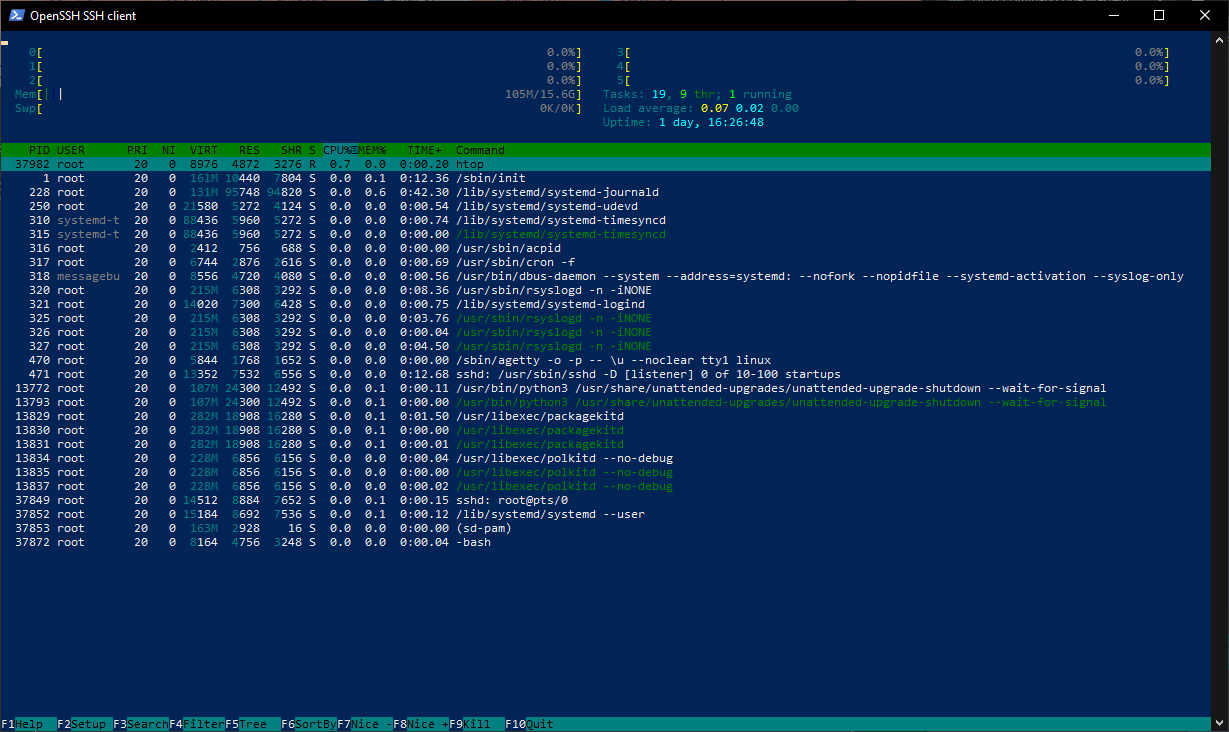
To install htop use the following command:
Debian/Ubuntu:
sudo apt update
sudo apt install htop
CentOS/RHEL:
sudo yum install epel-release   # This is needed for EPEL repository on CentOS/RHEL 7 and earlier.
sudo yum install htop
Fedora:
sudo dnf install htop
htop is an excellent alternative to the basic top command. In addition, it offers a more user-friendly interface and additional features for monitoring and managing processes and system resources.
How to Customize the Linux Terminal (color schemes, fonts)
Customizing the Linux terminal can make your command-line experience more enjoyable and efficient. Here are several ways to customize the terminal to suit your preferences:
Customizing the Prompt (PS1):
To customize your command prompt, you can modify the PS1 environment variable in your shell configuration file (e.g., .bashrc for Bash). Here’s an example of a custom Bash prompt:
# Add the following line to your .bashrc file
PS1='\[\e[32m\]\u@\h\[\e[m\]:\[\e[34m\]\w\[\e[m\]\$ '
\udisplays the username.\hdisplays the hostname.\wdisplays the current working directory.\[\e[32m\]and\[\e[m\]change text color (in this case, green for the username and blue for the directory).
Customizing Terminal Colors:
Most terminal emulators allow you to customize text and background colors in their preferences. For example, in GNOME Terminal, you can navigate to “Edit” > “Preferences” > “Profiles” and click the “Edit” button for your profile. There, you can customize colors under the “Text” and “Background” tabs.
Aliases:
Create aliases for frequently used commands or command sequences. Here’s an example:
# Add the following line to your .bashrc file
alias ll='ls -al'
After adding this alias, you can use ll in the terminal to list files and directories in long format with hidden files.
Customizing Tab Completion:
You can create custom tab completion behavior for specific commands. For example, let’s create a simple completion for a custom script named my_script:
# Add the following lines to your .bashrc file
_my_script_completion() {
    COMPREPLY=($(compgen -W "option1 option2 option3" -- "${COMP_WORDS[COMP_CWORD]}"))
}
complete -F _my_script_completion my_script
This completion script suggests options (“option1,” “option2,” “option3”) when you tab-complete my_script in the terminal.
Customizing Key Bindings:
You can customize key bindings in your shell by adding entries to your shell’s configuration file. For example, to bind the Ctrl+L key combination to clear the terminal screen:
# Add the following line to your .bashrc file
bind -x '"\C-l": clear'
After adding this line, pressing Ctrl+L will clear the terminal screen.
Using Oh My Zsh or Powerline:
If you’re using Zsh, you can install Oh My Zsh or Powerline to customize your prompt and add plugins. Here’s how to install Oh My Zsh:
sh -c "$(curl -fsSL https://raw.github.com/ohmyzsh/ohmyzsh/master/tools/install.sh)"
After installation, you can change the Zsh theme and customize plugins in the ~/.zshrc file.
Using a Custom Terminal Font:
You can change your terminal font through your terminal emulator’s settings. For example, in GNOME Terminal, go to “Edit” > “Preferences” > “Profiles” > “Text” to select a custom font.